Import and auto-reconcile subledger data within a task (DI)
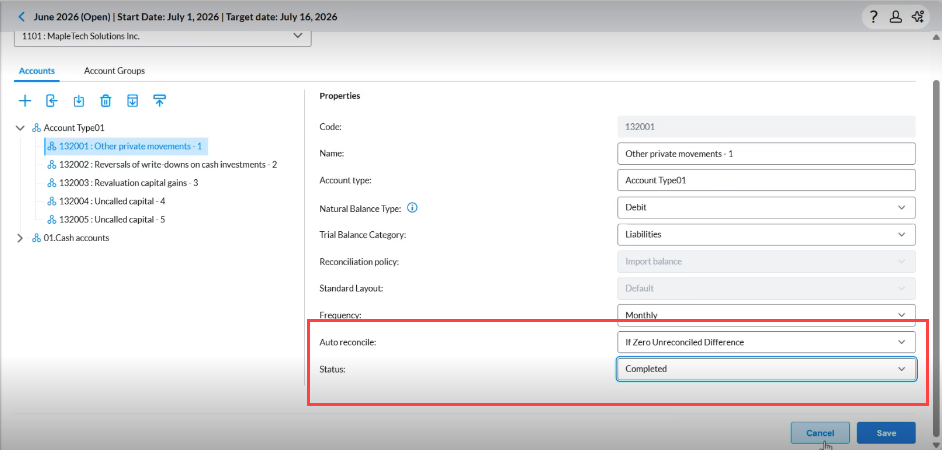
Within an Account Reconciliation task, you can import subledger data into Supporting Items using Data Integration (DI). Once the import completes, the system evaluates whether the account is fully reconciled. If the unreconciled difference equals zero, the task automatically advances to its next status.
Before You Begin:
To use DI import from a task, confirm the following:
-
A Data Integration data source is configured for the task.
-
The task is in an active period with an eligible workflow status.
-
You have the permissions required to run import data for the account.
Import sub-ledger items from a task
-
Open the task in Account Reconciliation.
-
Locate the Supporting Items section and select
 .
.
-
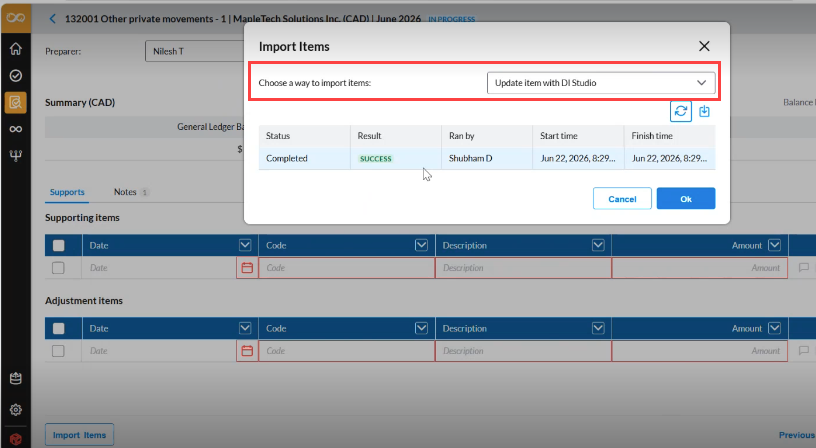
From the drop-down, choose Update Item with DI Studio. This option is only available only If a data source has been configured for the supporting items.
-
Select
 to stat the import.
 -
To check the current status of a running job, select the Refresh icon, and observe the status in the grid below.
-
After a successful import, return to the task page to see the imported sub-ledger items.
Tip:When supporting or adjustment items are imported through Data Integration (DI) and the auto-reconcile condition is met, a notification appears on the task:
Supporting items imported and task auto-reconciled.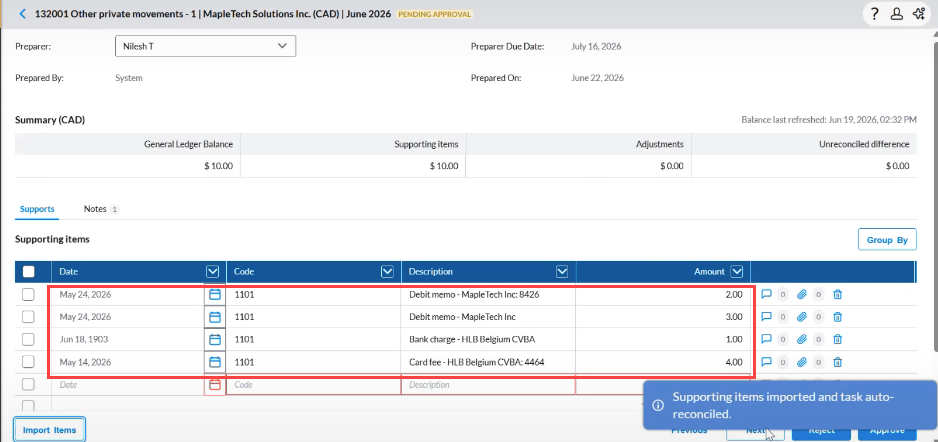
-
Optionally, to verify how the auto-reconciliation rule was applied, go to the Account page and select the account. Review the Auto reconcile and Status fields to confirm the reconciliation was completed.