Set up AR with FP&A
Global Admins can use data from Financial Planning and Analysis (FP&A) to configure the Account Reconciliation application. Clients who subscribe to FP&A can import existing FP&A data during setup to accelerate configuration.
Before Account Reconciliation can retrieve FP&A data, an integration key (token) must be generated in FP&A and entered in Account Reconciliation Settings. This key authorizes the connection between the two applications.
Once connected, Account Reconciliation imports Entities, Accounts, Periods, and Balances directly from FP&A. This streamlines configuration and reduces manual data mapping. Without a valid integration key, the setup wizard cannot access FP&A data.
Setting up Account Reconciliation to retrieve data from FP&A requires two roles:
-
FP&A Global Admin – Generates the integration key and grants data access.
-
AR Global Admin – Enters the integration details in Account Reconciliation and starts the Setup Wizard.
Complete the following steps in order:
1. FP&A Global Admin – Generate the Integration key
The FP&A user must first generate and copy the integration key from FP&A.
To retrieve the key:
-
Sign in to FP&A..
-
Open Security Manager.
-
Select the user account that will be used for the integration.
-
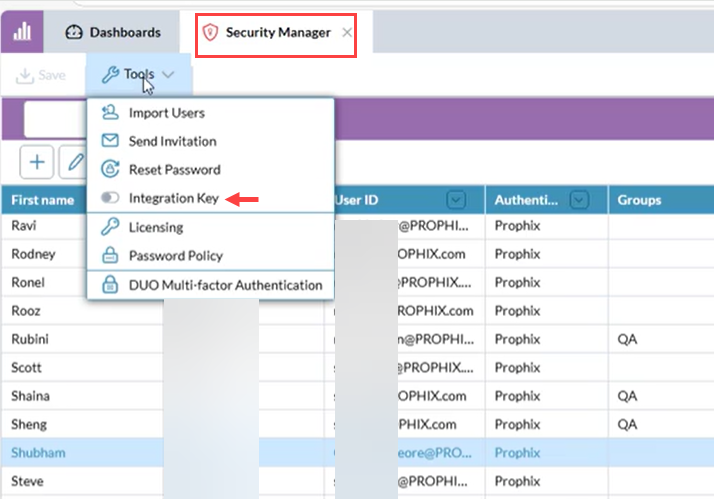
Select the Tools tab.
-
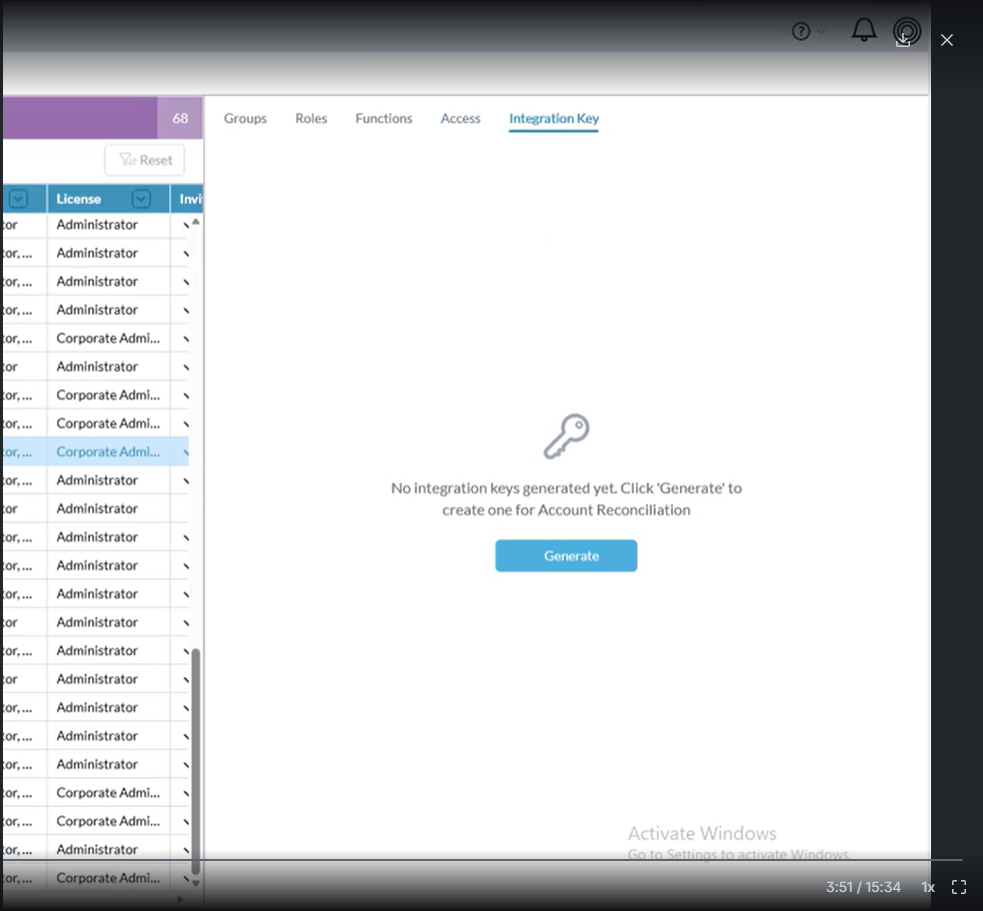
Enable the Integration Key. The Integration Key tab becomes available in the right panel.
-
Click Generate. The integration key is generated.
-
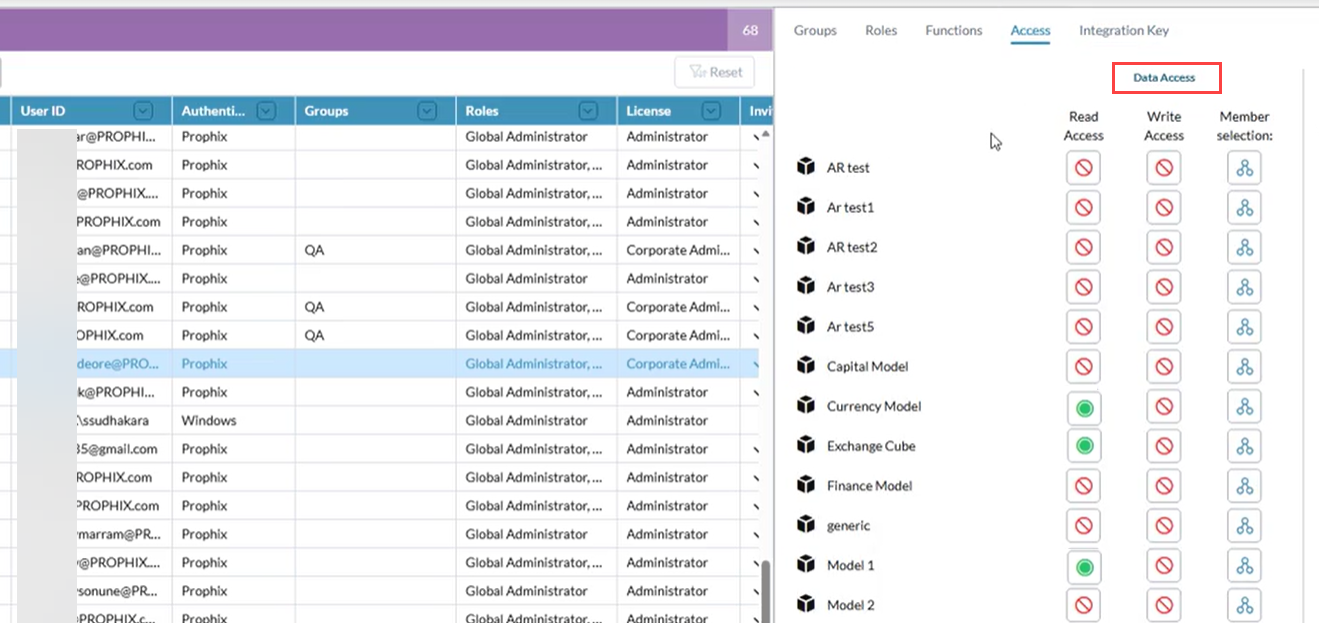
Next, select the Access tab.
-
Under Data Access, grant the user access to the model(s) needed for AR setup.
Read Access only is recommended.
-
-
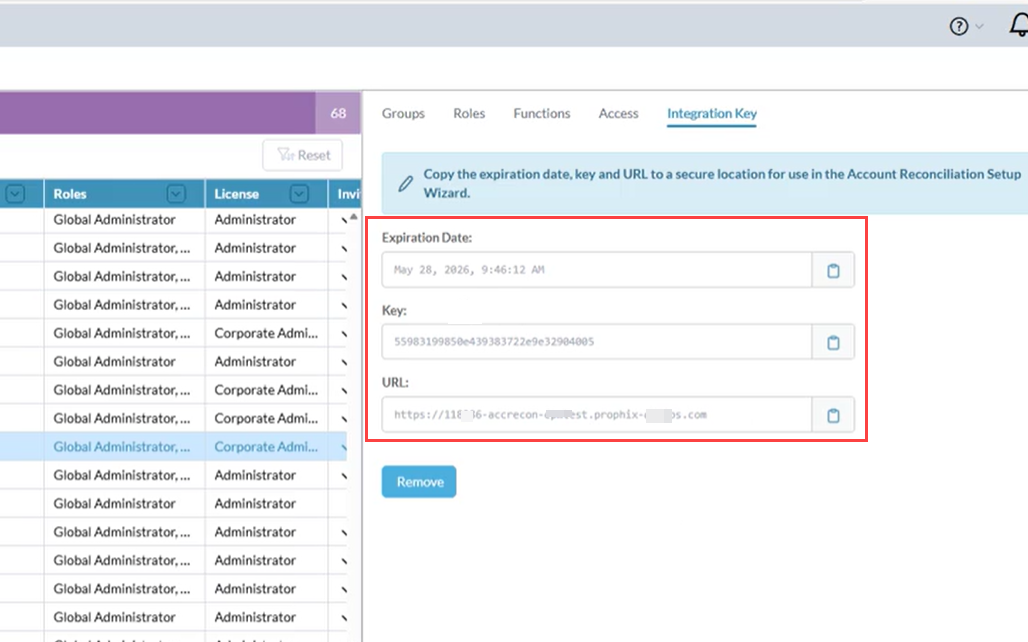
Return to the Integration Key tab.
-
Copy the following values:
-
Key (authentication token)
-
URL
-
Expiration date
-
-
-
Provide this information securely to the Account Reconciliation Global Admin.
Note: If the integration key expires, the connection between Account Reconciliation and FP&A will fail. A new key must be generated and saved.
2. AR Global Admin – Enter the Integration key in AR
After receiving the integration details, the Global Admin must configure the connection.
To add the FP&A integration:
-
Open Account Reconciliation.
-
On the Account Reconciliation Setup page, click Settings.
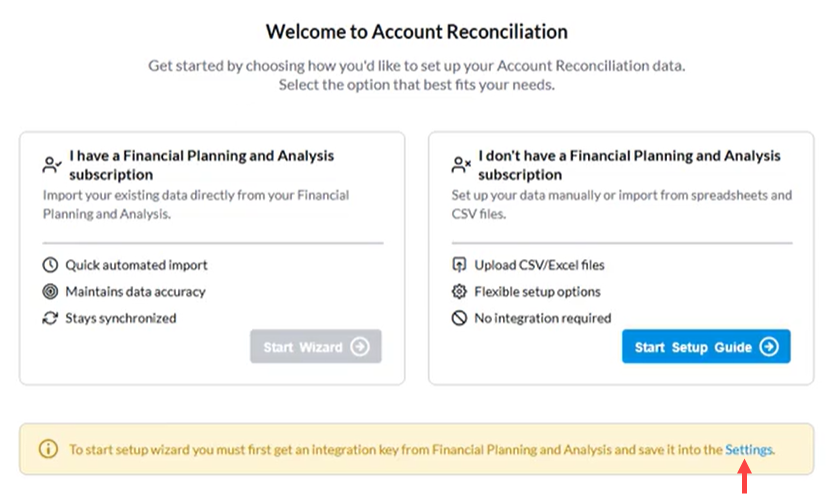
The Platform Integrations tab appears.
-
In the Platform Integrations tab, select
 . The Add Platform Integration dialog opens.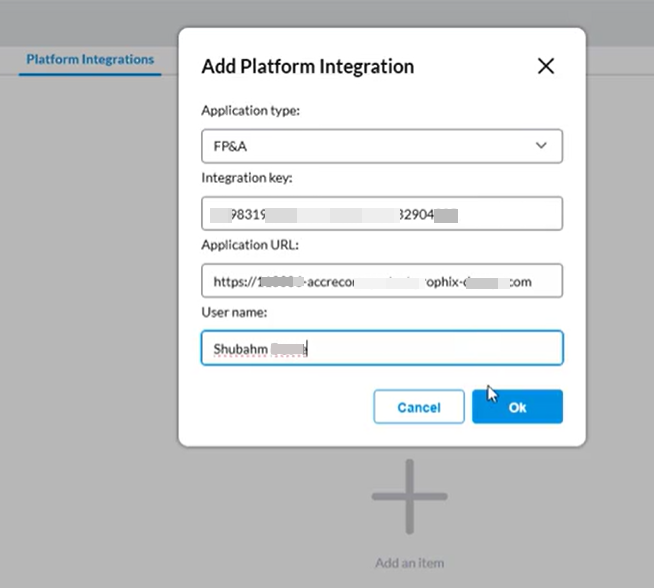
-
In the Add Platform Integration dialog, complete the following fields:
-
Application type: Select FP&A
-
Integration key: Paste or enter the copied key
-
Application URL: Paste or enter the copied URL
-
User name: Enter the FP&A user name used to generate the key
-
-
Click
 to save. The integration is now configured.
3. AR Global Admin – Start the AR Setup wizard
After saving the integration:
-
Return to the Account Reconciliation Setup page.
-
Under I have a Financial Planning and Analysis subscription, select Start Wizard.
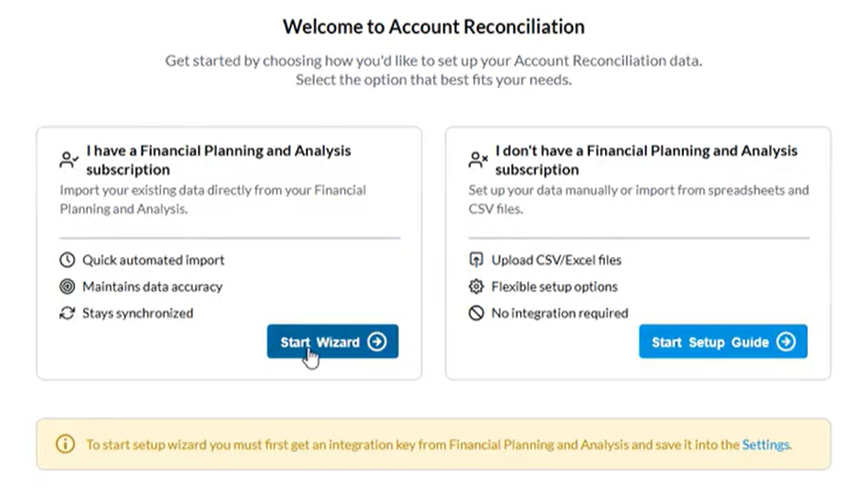
The wizard will now retrieve data from FP&A.
-
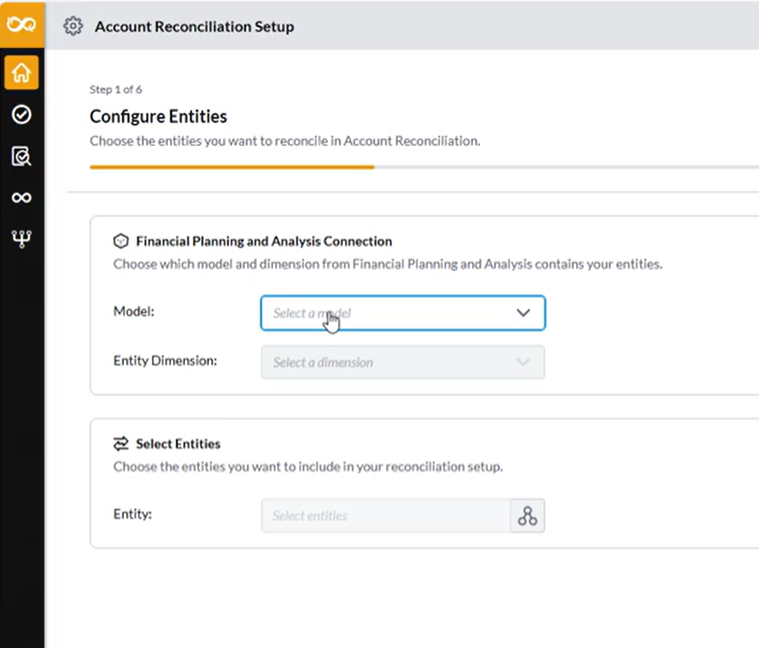
Follow the wizard prompts to complete setup. The first step is to configure the entities you want to reconcile in Account Reconciliations:
 Tip: Click
 on each page to access Help.
Troubleshooting
If data does not transfer:
-
Confirm the integration key was copied completely.
-
Ensure that there are no extra spaces when pasting the key.
-
Verify that the URL matches the FP&A environment.
-
Check whether the key has expired.
-
Confirm the selected user has proper permissions in FP&A.
 See also