This article explains how to reconcile an account based on movement between periods when the reconciliation policy is set to Reconcile against Change.
The task summary displays the account’s starting balance, ending balance, change, and unreconciled difference, recalculating automatically when data changes.
Tip: When the policy is NOT Reconcile against Change, the Change field is intentionally blank and the Summary shows the traditional single General Ledger Balance field.
Reconcile Account against Change
-
Navigate to the account you want to reconcile and open the Account Task.
-
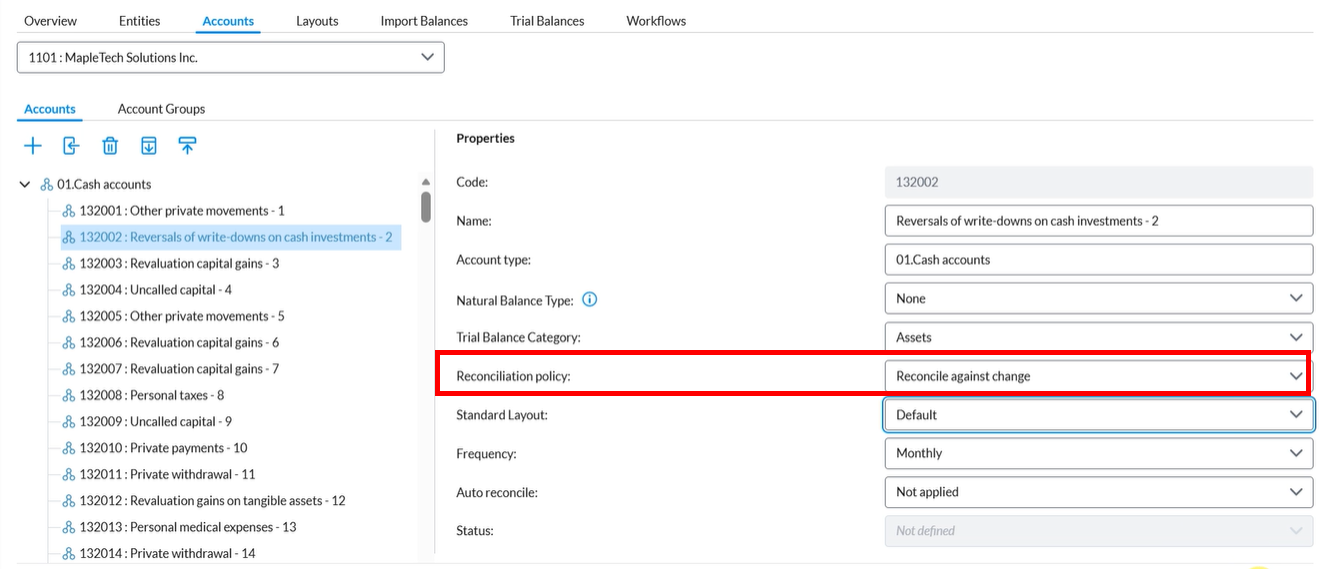
Ensure the account’s policy is set to Reconcile against Change.
-
Review the Summary fields.
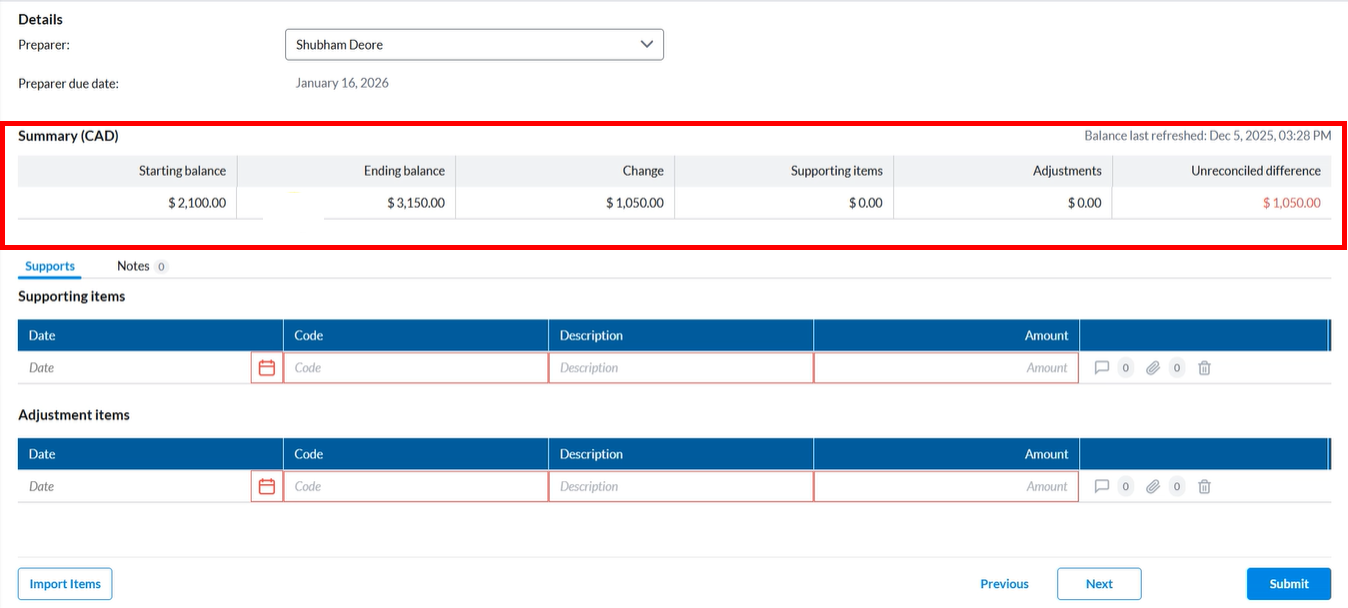
The Summary section displays:
-
Starting balance (prior period ending balance or 0.00 if none)
-
Ending balance (current period balance)
-
Change (Ending − Starting)
-
Supporting Items total
-
Adjustments total
-
Unreconciled difference (Change − Supporting Items − Adjustments)
-
-
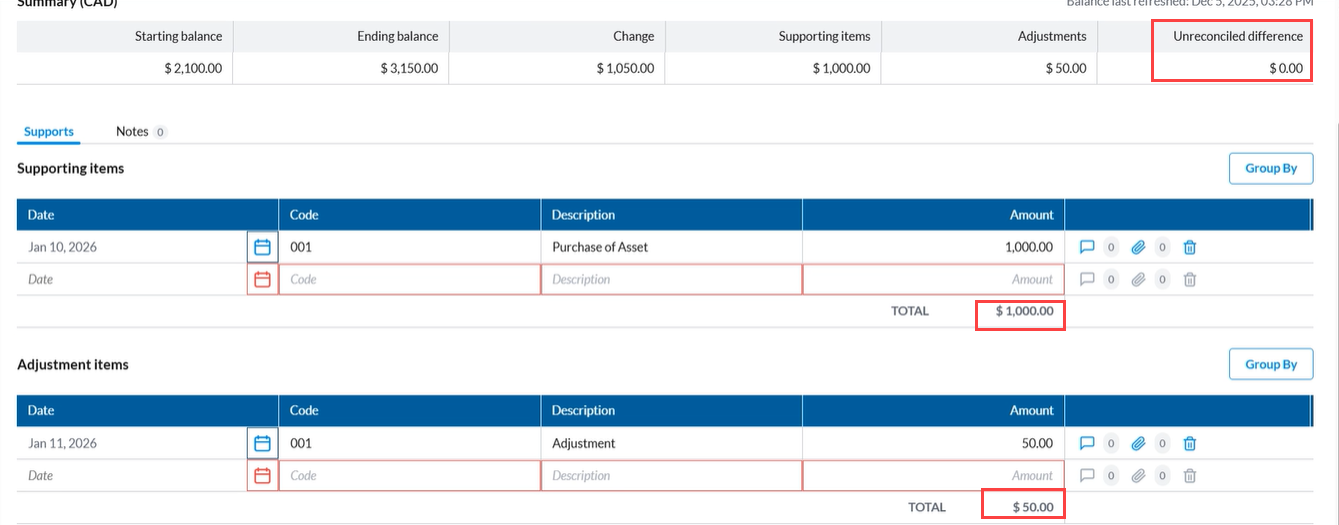
Add Supporting Items to justify movement. The totals update automatically.
-
Add Adjustments if required.
-
Review the Unreconciled Difference. The unreconciled difference recalculates instantly as you add or update values.
Negative values display in parentheses.
-
Submit the task. When the unreconciled difference is zero (or within your organization’s thresholds), submit the task for approval.
How the system recalculates
The system updates starting balance, change, and unreconciled difference in real time when:
-
Current period ending balance changes
-
Prior period ending balance changes
-
Supporting items or adjustments change