Continuous Matching: Re-import and duplicate detection
When you use Continuous Matching to re-import transactions, you may be importing records that already exist in the reconciliation. This can happen when, for example, a file is uploaded more than once or a bank statement contains overlapping transactions.
During the re-import, the system checks each incoming transaction for an exact duplicate before loading it. This prevents an existing transaction from being loaded again.
How duplicate transactions are identified
For each incoming transaction, the system compares it with existing transactions on the same side:
-
A GL transaction is compared only with existing GL transactions.
-
A Bank transaction is compared only with existing Bank transactions.
Where the system looks for matches
The system checks transactions in both:
-
Reconciled record — includes matched or reconciled transactions.
-
Unreconciled record — includes unreconciled transactions
An incoming transaction is considered a duplicate only when all five fields match an existing transaction: If any field differs, the system loads the record as a new record.
| Field | How the system checks for duplicates |
|---|---|
|
Date |
Compares the date as a calendar date, not as text. Import dates in MM/DD/YYYY format. |
|
Amount |
Compares the signed amount. Debits and credits are kept separate. The system applies no tolerance or rounding. Example: - 5,000.00 (debit) and + 5,000.00 (credit) do not match. The credit loads as a new record, provided no other duplicate match exists. |
|
Custom1, 2, 3 |
Compares the text exactly after removing spaces at the start and end. It does not change case, spaces inside the text, or punctuation. Example:
ABC123 and ABC123 match. ABC123 and abc123 do not match. The incoming transaction is therefore treated as new and is loaded, assuming the other fields do not produce another exact match. |
How AR handles incoming transactions
Account Reconciliation (AR) checks incoming transactions for duplicates and determines whether to load or reject each record. The system evaluates GL and bank transactions separately and applies specific rules during import to handle new, duplicate, and matching records.
GL and Bank transactions are checked separately
The system does not compare transactions across sides.
For example, suppose a GL transaction and a Bank transaction have identical values for:
-
Date
-
Amount
-
Custom1
-
Custom2
-
Custom3
The transactions are not considered duplicates of each other because they belong to different sides.
A GL transaction is checked only against GL transactions, and a Bank transaction is checked only against Bank transactions.
What happens during the import
| If the incoming record... | Account reconciliation... |
|---|---|
|
Matches an existing record on the same side in all five fields |
Rejects the record, does not load it, and lists it in the results log with the reason “Duplicate record.” |
|
Differs from every existing record in at least one of the five fields |
Loads the record as a new record. |
|
Matches an existing record on the opposite side (for example, GL compared with bank) |
Loads the record. The system checks for duplicates only within the same side. |
|
Matches a record that is already reconciled (matched) |
Rejects the incoming record. The existing matched record is not reopened or changed. |
|
Matches an existing unreconciled record |
Rejects the incoming record. |
|
Has the same calendar date as an existing record, but the date is formatted differently, and all other fields match |
Rejects the record as a duplicate. |
|
Has the same amount as an existing record but with the opposite sign (for example, a reversal) |
Loads the record as a new record. |
|
Has a custom field that differs only by leading or trailing spaces |
Rejects the record as a duplicate. |
|
Has a custom field that differs by case, spaces inside the text, or punctuation |
Loads the record as a new record. The system does not normalize or otherwise adjust for these differences. |
|
Is part of a file that contains both new and duplicate records |
Loads the new records, rejects the duplicates, and displays a summary with both counts. |
Re-import transactions and review duplicates
Before you begin:Make sure the reconciliation uses Continuous Matching.
-
Open the reconciliation that you want to update. It opens in the Unreconciled Transactions tab
-
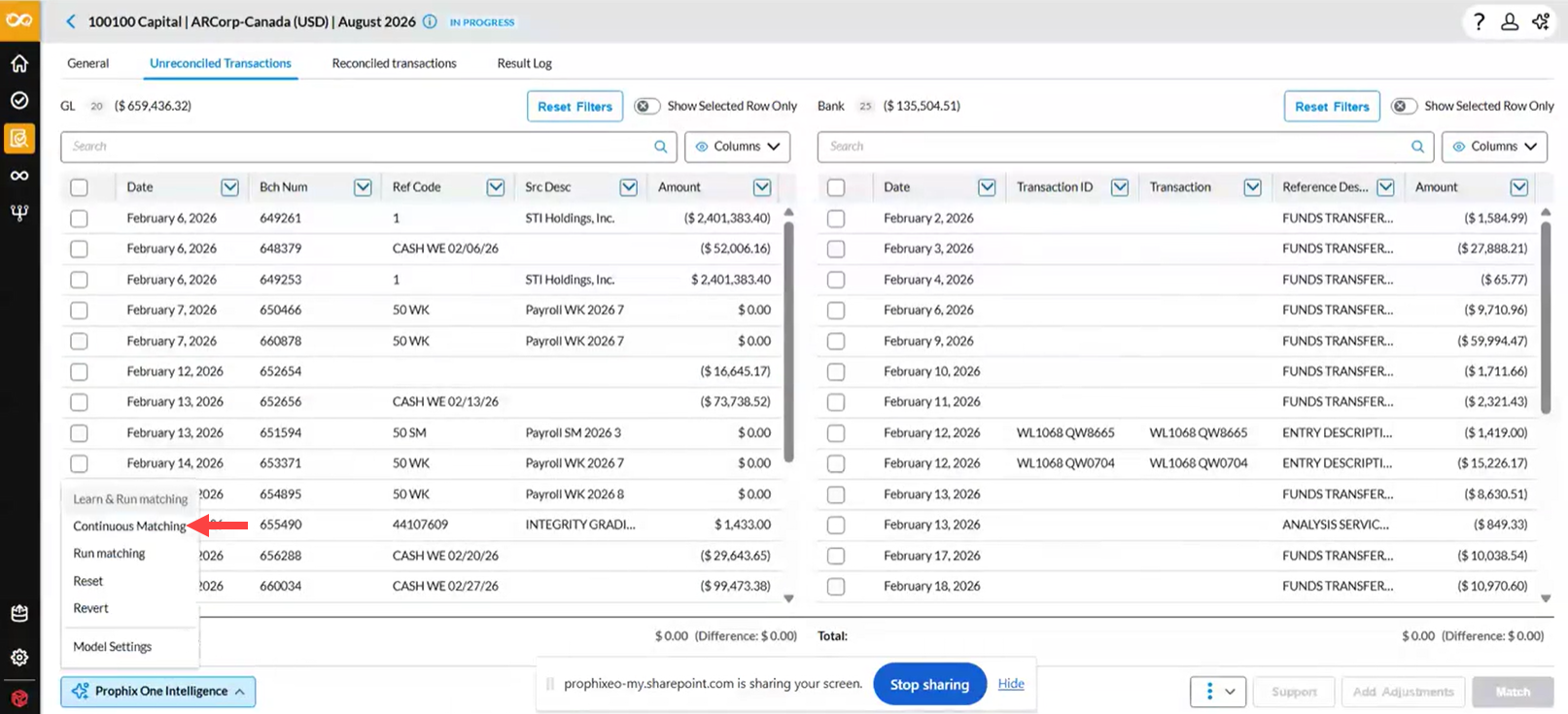
In the Unreconciled Transactions tab, select Continuous Matching from Prophix One Intelligence.
-
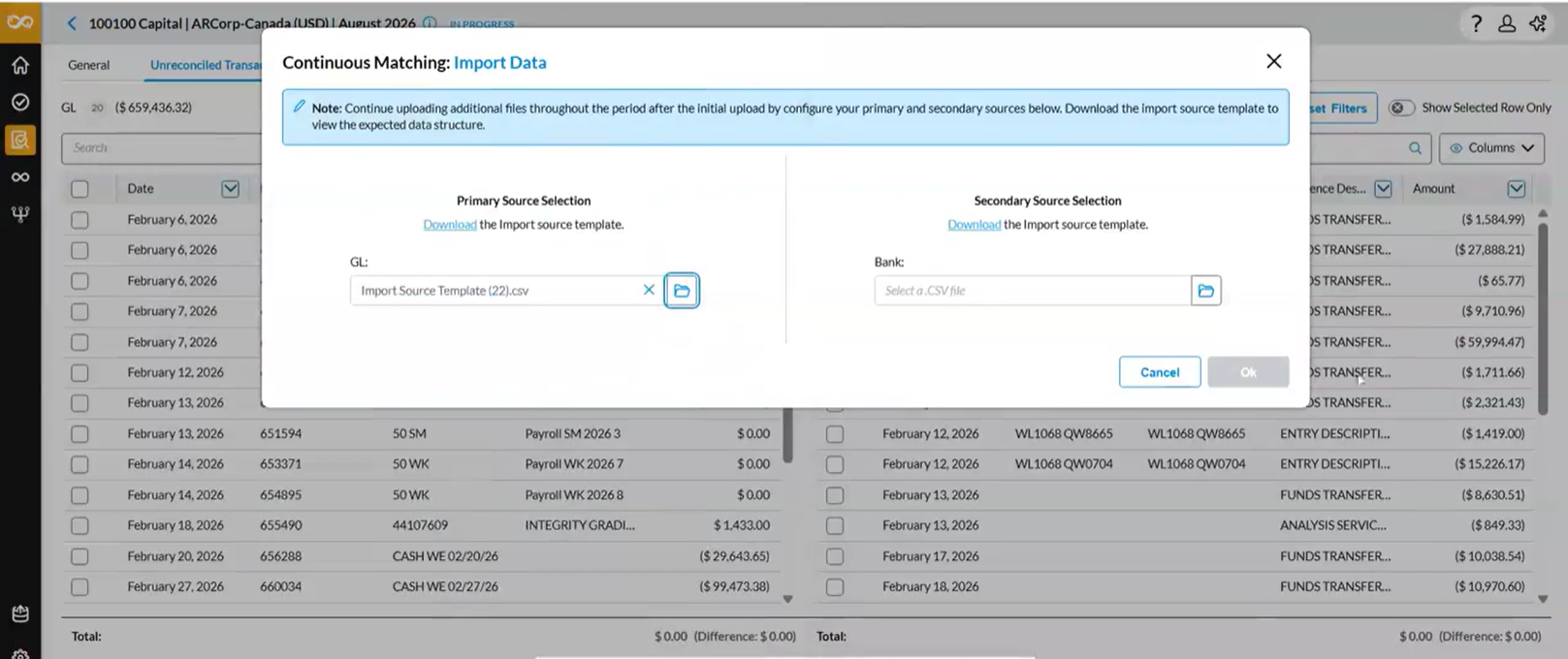
In Continuous Matching: Import Data, start the transaction import. Upload the files that contains the transactions, and then complete the import. Before it loads any record, the system checks each incoming record against the existing records.
-
When the import finishes, view the import results in Results Log tab.
-
Click
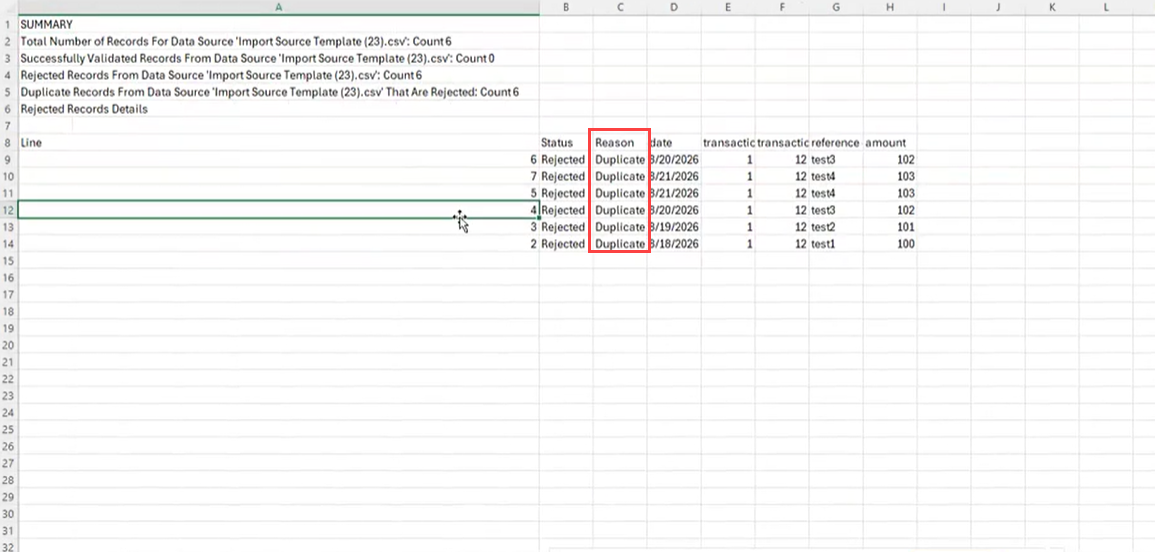
 to open the import summary file. The summary displays the number of records loaded and the number of records rejected as duplicates.
-
Find the records with the reason "Duplicate record". Use the reference in each row to locate the existing record that the system matched
If a record was rejected and you expected it to load
-
Compare the rejected record with the existing record it matched.
-
Check the date, amount, Custom1, Custom2, and Custom3 values.
-
If all five values are identical, the system treats the record as a duplicate.
-
If the records are different transactions that share identical values, contact your administrator.
-
-
When you import a file that overlaps with earlier imports, review the summary counts to confirm that the number of rejected records matches what you expect.
-
Review the result log after each re-import to confirm that the rejected records are true duplicates.
-
Use consistent formatting for custom field values in your source files. Differences in case or punctuation cause the system to load the record as new.
What the import does not change
-
The system does not re-open or change any existing matched record when it rejects a duplicate.
-
The system does not merge records.
-
Rejected duplicates are not loaded into the reconciliation. They appear only in the result log.
Limitations
The duplicate check finds exact duplicates only. The system does not find records that are similar but not identical.
The following differences cause the system to load a record as new:
-
Differences in upper case or lower case in Custom1, Custom2, or Custom3.
-
Differences in spaces inside the text or in punctuation in Custom1, Custom2, or Custom3.
-
Differences in the amount, including differences caused by rounding.