Multi-level workflow approval setup
This article is for administrators who set up workflows. Account Reconciliation supports a two-level approval process for workflows. In addition to the standard approver, you can add a second approver role to require an independent sign-off before a task is complete. Use this second level when a task needs review by someone other than the original approver — for example, when a workflow covers a high-risk account or requires additional oversight.
Note: The level of approval cannot be changed after the workflow is created.
Set the level of approval in the workflow
You set the approval structure for a workflow when you create it, using the Level of Approval field.
-
Go to
 and click
  .
. -
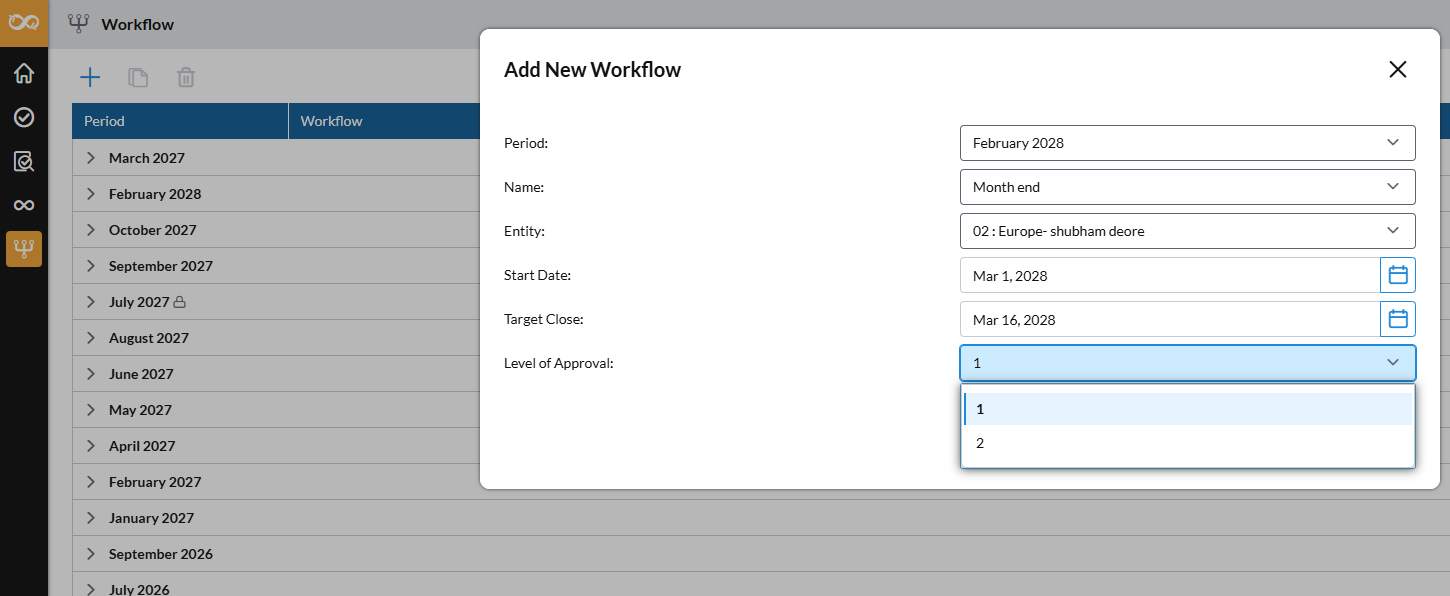
On the Add New Workflow page, locate the Level of Approval field.
-
Select one of the following values:
-
1 – Single level (Approver only): the workflow follows the standard single approver process.
-
2 – Two levels (Approver and Approver -2): the workflow requires both an approver and approver 2 to sign off.
-
-
Click
 . Your workflow is created and listed on the Workflow page.
 -
On the Workflow page, locate and select the new workflow you just created. The Workflow Details page is displayed.
-
If you selected 1: Assign the task to a user with the approver role only and select a due date.
-
If you selected 2: Two additional rows are displayed — An Approver-2 and Approver-2 Due. Assign both.
Note: When Level of Approval is set to 2, an Approver-2 and Approver-2 Due date must be assigned before workflow setup can be completed.
-
Task status and routing during approval
As a task moves through the two-level approval process, its status updates to reflect who currently holds the task and what action is needed next. The status is the same wherever you view the task.
| Status | What it means | Task held by |
|---|---|---|
|
Not Started |
The task is assigned but the preparer has not yet opened it. |
Preparer |
|
In Progress |
The preparer is working on the task, including after it is sent back for rework. |
Preparer |
|
Rejected |
The task was sent back to the preparer for rework. |
Preparer |
|
Pending Approval |
The task is waiting for the approver, either for its first review or because Approver-2 sent it back for another look. |
Approver |
|
Pending Approval-2 |
The task is waiting for the second-level approver. |
Approver-2 |
|
Completed |
Approver-2 has given final approval and no further action is needed. |
— |
How rejections route the task
If the approver rejects a task, it returns to the preparer with a status of Rejected. Once the preparer reworks and resubmits the task, it goes back to the approver as Pending Approval.
If Approver-2 rejects a task, where it goes depends on who needs to act next:
-
Sent back to the approver: the task takes a status of Pending Approval, since it is returning to an earlier approval step rather than being sent back for rework.
-
Sent back to the preparer: the task takes a status of Rejected, and follows the same rework and resubmission
| Rejection source | Routed to | Resulting status | Reason |
|---|---|---|---|
|
Approver rejects |
Preparer |
Rejected |
Task needs rework before resubmission. |
|
Preparer resubmits (after either rejection path) |
Approver |
Pending Approval |
Task returns to the approver for review. |
|
Approver-2 rejects |
Approver |
Pending Approval |
Task is returning to an earlier approval step, not being sent back for rework. |
|
Approver-2 rejects |
Preparer |
Rejected |
Task follows the same rework and resubmission path as an approver rejection. |
Use workflow templates for multi-level approval
If you regularly set up workflows with two levels of approval, you can use an export/import template instead of configuring each workflow individually. Export a template that already includes the Approver-2 columns, fill in your workflow details, then import the completed file to create the workflows in bulk.
Export a workflow template
-
First, create a workflow with a Level of Approval set to 2. See Set level of approval in workflow.
-
On the Workflow Details page, click
 . The exported file includes two additional columns:
-
Approver -2
-
Approve - 2 Due date
These columns appear alongside the existing Preparer and Approver columns.
You now have a template you can use to set up multiple workflows with two levels of approval at once.

-
Import a workflow template
-
After you fill in the workflow template with all the workflows for your period, you can import it back into Account Reconciliation.
-
On the Workflow Details page, click the import icon to open the Import page.
-
Select your completed file and confirm the import. All existing import validations continue to apply, for example date format and user role checks.
Note: If the file you upload includes the Approver-2 and Approver-2 Due date columns, but leaves those values blank, the import is allowed.