Global Admins can import supporting item data from a defined data source and load tens of thousands of records in a single action (e.g., 1,000+ items per account or 50,000+ items across entities and periods).
Supporting items can be imported for individual Accounts or Account Groups.
Preconditions for importing supporting items
-
Period is created and is Open
-
Accounts must be assigned to the period
-
A Layout is assigned to each account.
-
-
Workflow is created for the period with status In Progress
-
Task status for each account or group must be Not Started, In Progress, or Pending Approval.
Note: Supporting items will not be imported for Completed tasks
What you need to do
- Define the Data Source — Identify and configure the connection to your ERP, GL, etc.
-
Add the supporting items. — Import the supporting items using the defined data source.
Define the data source
-
Follow steps 1-5 of Define the data source to create the data source for the supporting items.
-
Ensure that the Data source type field is set to Supporting Items.
-
Save the data source.
-
Proceed to import the supporting items.
Add the supporting items to import
-
While on the Data Source page, click Import Data .The Import Data page opens.
-
Under Supporting items, click
 to open the Import Supporting items dialog.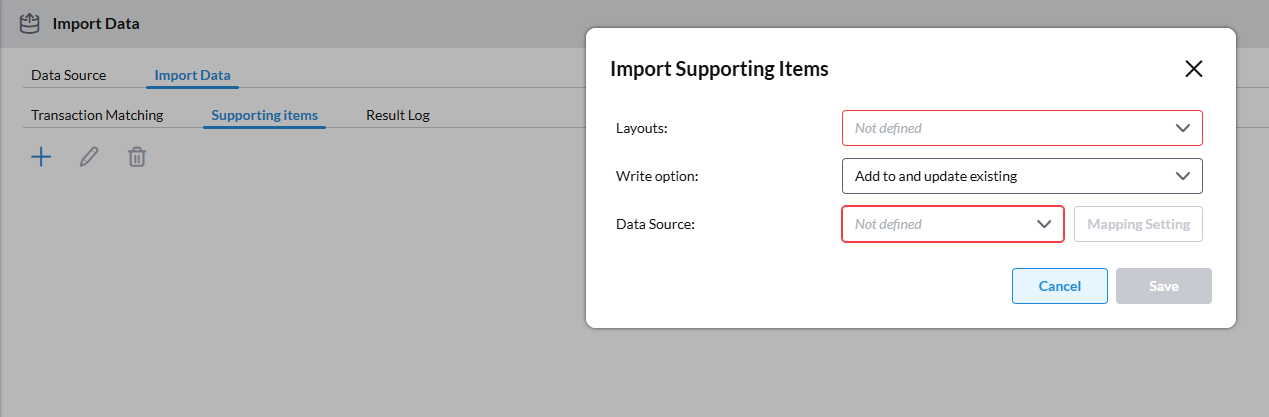
-
Complete the fields:
-
Layouts: Select the supporting items layout to use for this import. Each account is assigned a layout.
-
Write option: Choose how the import should handle existing supporting items:
-
Add to and update existing: Inserts only new supporting item records and updates any existing records that match the imported data.
-
Overwrite: Replaces existing supporting item records with the imported data. This option may add, update, or remove records depending on the imported file.
-
-
Data Source:Select the defined data source that contains the supporting items to import.
-
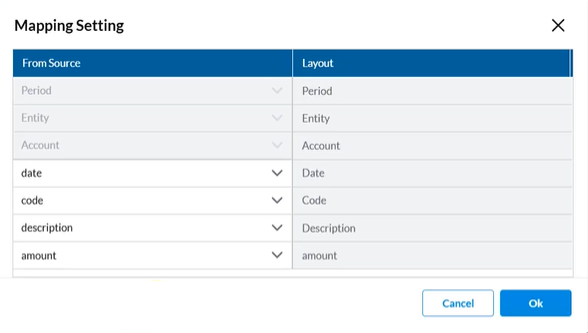
Mapping Setting: Click Mapping Setting to open the dialog and map the Source columns to the Layout columns. Layout columns are read-only.
-
-
Click
 to save your mapping and then, click
  .
. -
Click
 to start the import.
After the import
Open the Result Log to review:
-
The results of the imported records
-
Validation messages for skipped or incomplete records
-
Downloadable result details including entity, account, period, and exchange rate information.
Review Supporting items in the task
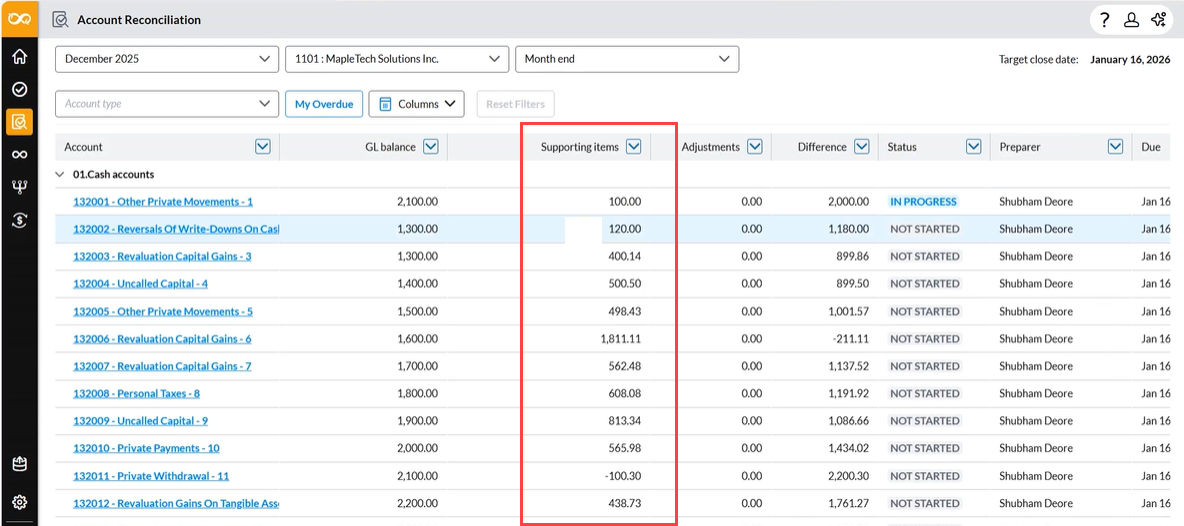
On the  page, imported Supporting items appear in the Supporting items column:
-
The Difference value for each row updates based on the imported amounts.
-
The assigned user can now review each account or group, add additional supporting items if needed, and submit the task.