Import and reconcile data from Data Integration
You can import transaction data directly from your ERP, general ledger (GL), or bank through Data Integration. After the data is imported, automated transaction matching runs as part of the reconciliation process, helping you quickly identify matched, unmatched, or partially matched transactions.
You can also view validation results to confirm that imported transactions meet all data requirements before finalizing your reconciliations.
Note: A Global Administrator sets up the Data Integration connection by defining the Data Sources and Transaction Sets. After this setup is complete, any task that requires data import from Data Integration automatically opens the Data Import page, where the two data sources for that task are pre-filled based on the administrator’s configuration.
Import and auto-match transactions
Use the following steps to import transactions from the primary and secondary data sources from Data Integration.
-
Navigate to the Account Reconciliation page to view your assigned tasks.
-
Select a task from the list.
-
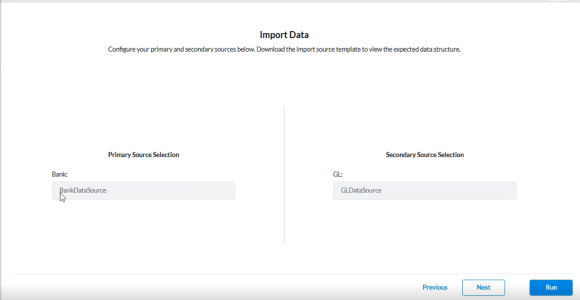
If the Reconciliation Type is set to Transaction Matching, and data import from Data Integration is required, the Import Data page appears automatically.
-
-
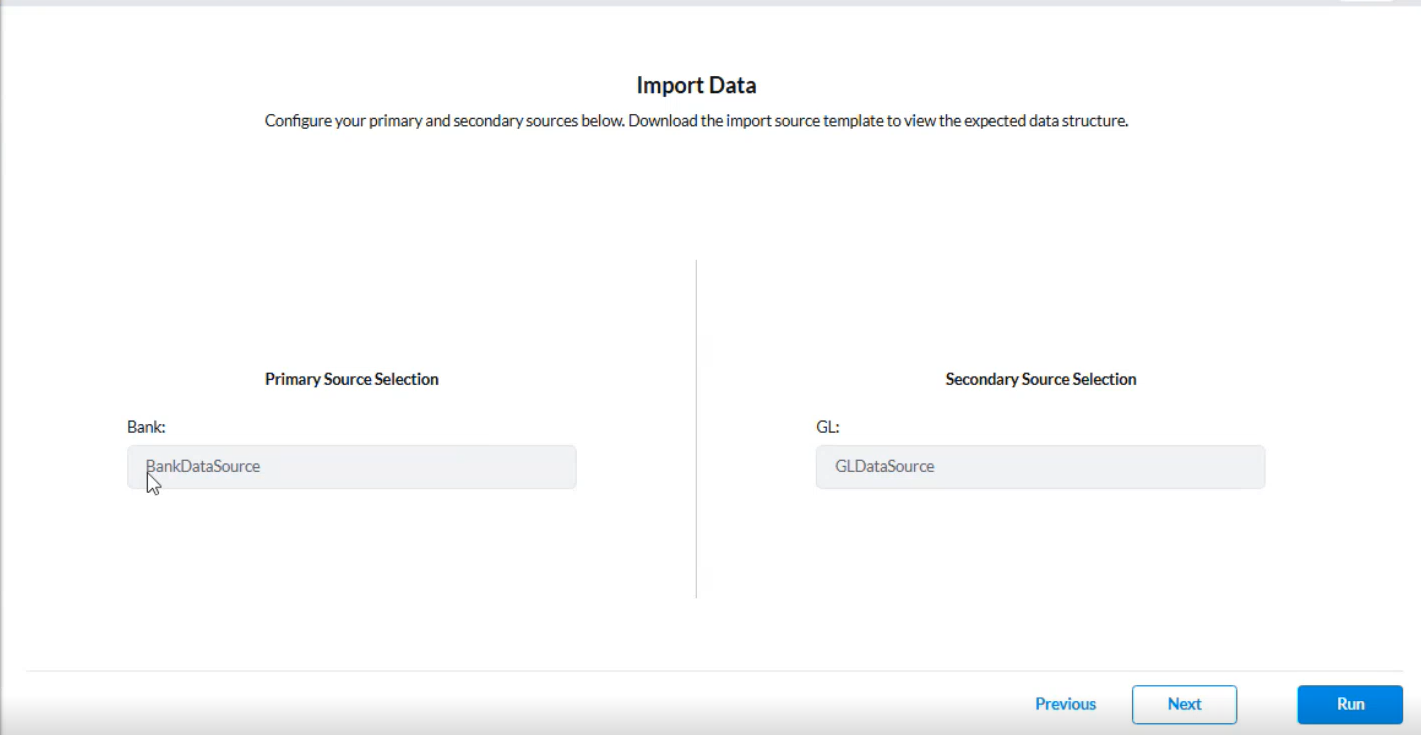
On the Import Data page, the names of the Primary and Secondary data sources — defined in the transaction set — are displayed. These data sources are used to match transactions during the reconciliation process.
Note: If the data source is unavailable, contact your Global Admin to switch to an alternate source, such as a flat file, so you can import data from that source and continue working.
-
Click
 . The system executes the job, searches for the staging table, and retrieves the transactions for both the primary and secondary data sources.
 -
After the job completes, click Result Log to review the import results . See View validation results.
-
Go to the Reconciled transaction tab to view successfully matched transactions. Transactions that were not matched appear in the Unreconciled transactions tab.
Tip: To handle unmatched transactions, refer to the Handle unmatched transactions section of the Automated transaction matching article.
View import validation results
Go to the Results Log tab
-
If any transactions fail to import, the system displays validation messages explaining the reason for each failure.
-
Successful import is marked as Success . You can review the matching results.
-
An import with errors is marked as Error. Click
 to retrieve the results file and investigate the issue.
 -
Use the validation messages to identify and correct any data or configuration issues before re-importing.